
Your holiday Meta campaign has finally come together. The offer is approved, the product looks right, and the video gets to the point before anyone has time to scroll past it.
Then the Google campaign needs assets.
Opening the Meta folder feels like a head start. There is footage, copy, and a visual direction the team already knows. But the first horizontal crop cuts off the offer. The portrait image has no room to become a landscape composition. The short video edit loses the closing CTA.
Reusing creative still takes creative judgment. The trick is knowing which parts can travel intact and which need another treatment.
Google Creative Coverage in Adroom helps you make those decisions in one workflow. Bring in your Meta assets, choose Demand Gen or YouTube Video Reach, and check the creative against the selected campaign requirements. Keep what fits, adapt suitable assets, and generate the missing formats using your Brand Kit and brief.
For teams preparing for Black Friday and Cyber Monday, this is a way to put an existing holiday set to work on Google while there is still time to review the result. Here is how to move from that Meta folder to an approved Google-ready export.
Key Takeaways
- Start with the Meta assets worth carrying forward. Connect Meta in Integrations or upload your existing images and videos.
- Choose the Google destination before changing the creative. Demand Gen and YouTube Video Reach have different asset needs.
- Let Coverage Check identify the work. It compares selected assets with the target requirements and shows covered slots and gaps.
- Choose a video treatment deliberately. Padding, blurred padding, cropping, and regeneration solve different composition problems.
- Lock the campaign details before generation. Specify the exact offer, approved copy, and CTA so new formats stay aligned with the holiday campaign.
- Allow time for approval. Review the adapted and generated assets before exporting the set for upload.
Start With a Useful Set of Meta Ads
For this walkthrough, imagine a holiday promotion with three existing assets: a 9:16 product video, a portrait product image, and a square promotional image. The campaign also has an approved offer and landing page.
The goal is to prepare this creative for a Google campaign without sending the entire set back through production.
Before importing, choose the assets you actually want to build on. Look for current packaging, a valid promotion, a clear product story, and footage that can support the new campaign. If you are bringing a Meta winner, know what made it worth reusing: the hook, the demonstration, the offer, or some combination of those elements.
That gives the adaptation a purpose. It also gives the reviewer something more useful to assess than whether the output resembles the original.
A successful Meta ad is a starting point for a Google test. Its results on Meta can help you choose the source; the adapted version will still need to earn its place in the Google campaign.
Step 1: Bring Your Meta Creative Into Adroom
You have two routes into the workflow.
Connect Meta in Integrations
Select the correct brand in Adroom, open Integrations, and connect Meta Ads. Choose the accounts associated with that brand and complete the sync so their campaigns and creative are available.
In Campaign Coverage, you can start from an existing synced Meta campaign. Its assets load into the workflow as source material, and you then choose the Google campaign type you want to prepare for.
This is useful when the holiday creative is already organized inside a campaign and you want to work from that set.
Upload Existing Files
You can also upload the images and videos directly. Use this route when you already have the approved exports or want to select a small set of creative without pulling from a connected campaign.
Assets from the Adroom Brand Library are another available source. Whichever route you choose, check that you are bringing in the current versions of the promotion.
Complete the Brand Kit before proceeding. It supplies the logo, colors, product information, and guidelines used for new generation. If the workflow needs to generate video, provide a product reference through a clean packshot or the Brand Kit’s product information. Existing ad files serve as coverage inputs; they do not replace that generation reference.
Step 2: Pick Demand Gen or YouTube Video Reach
The source campaign tells Adroom where the creative came from. Your Google selection tells it what the finished set needs to support.
Choose Demand Gen or YouTube Video Reach in Campaign Coverage. For YouTube Video Reach, select the relevant subtype and format mix as well.
This decision comes before adaptation because it defines the work. The same vertical video may be usable for one selected slot and require another treatment for a horizontal slot. Images, copy, and video are checked against the chosen campaign rather than a generic definition of “Google-ready.”
For our holiday set, suppose the team wants to prepare a 16:9 in-stream version of the 9:16 Meta video. That creates a specific composition question: how can the wider version preserve the product demonstration and offer?
Choosing the destination first lets the team answer that question against an actual target.
Step 3: Lock the Offer, Headlines, and CTA in the Brief
Before generating anything, write down the campaign details that must survive the move.
For a holiday promotion, a small wording change can create a large problem. “Up to 25% off selected items” and “25% off everything” describe different offers. A shorter headline that drops the qualification needs attention even if it fits the character limit perfectly.
Use the campaign brief to make those constraints explicit. It should establish the audience and objective, then identify the exact offer, approved headlines or descriptions, required CTA, and anything the creative must show or avoid.
For example, a hypothetical brief could include:
Prepare creative for our holiday promotion using the supplied product assets. The approved offer is “Up to 25% off selected products.” Keep that wording wherever the offer appears. Use “Shop the Holiday Sale” as the CTA. Keep the product packaging recognizable. Do not add free shipping, a countdown, or a broader discount claim. Use the approved headline verbatim where it fits the selected format.
Lock exact headlines and descriptions when they must be preserved. Locked copy that meets the applicable limits can be used as supplied; other text is generated for the required slots. If approved copy is too long, resolve that before treating the set as ready.
You can type the brief or upload it as a supported document. Review the extracted text so the offer and restrictions reach generation correctly.
Step 4: Run Coverage Check and Read the Gaps
Run Coverage Check after selecting the assets and supplying the campaign context.
Adroom compares the files with the requirements for your selected Google campaign. It measures the available formats, matches suitable assets to slots, and shows which parts of the set are covered.
Look underneath the overall percentage. Expand the categories marked with gaps and read any warnings about dimensions, ratios, durations, or unreadable asset information. Required gaps identify missing minimums; recommended gaps represent additional coverage to consider.
For our example, the square image may already fit an image slot. The vertical video may need adaptation for the horizontal target. The portrait image may need a new landscape version.
The Coverage Plan turns that assessment into actions: Covered, ADAPT, or GENERATE. One source set can lead to a combination of all three.
Review the proposed actions and estimated credit cost before starting production. This is the point to confirm that the plan reflects the campaign you intend to launch.
Step 5: Turn a 9:16 Meta Video Into 16:9 In-Stream Creative
A vertical video contains far less horizontal composition than a widescreen frame needs. The adaptation method determines what fills that space and what happens to the original footage.
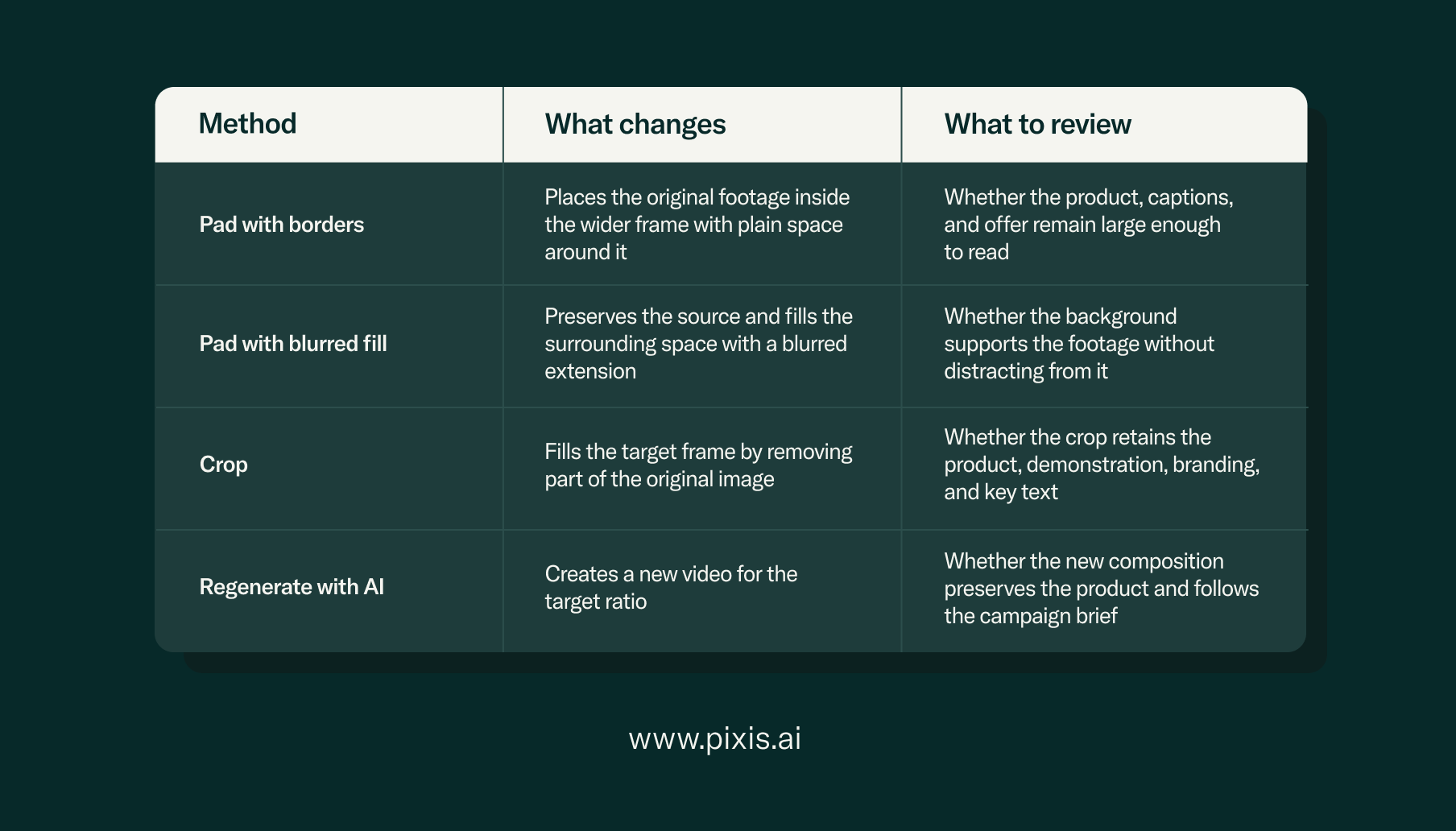
Coverage offers four approaches for the orientation change:
When Padding Preserves the Best Part of the Ad
Suppose the Meta video shows a product from top to bottom, with the offer above it and captions below. A horizontal crop could remove both the offer and the captions.
Padding preserves the original frame. Plain borders provide a simple treatment; blurred fill uses the surrounding space differently. Both need a preview at a realistic viewing size. Preserving every pixel of the source is only useful if the customer can still read and understand it.
When a Crop Can Work
A crop may suit footage where the important action stays inside the area that will remain visible.
Watch the whole video, including camera movement. A product centered in the opening frame may move out of the crop during the demonstration. Check the logo, text, and closing CTA as carefully as the subject.
When the Video Needs Regeneration
If padding leaves the product too small and cropping removes essential content, regeneration gives the team a way to create a composition for the target frame.
The regenerated version is new creative that needs review against the brief. Supply clear product references and preserve the campaign’s approved offer and CTA in the instructions.
The source also has to support the chosen adaptation. If it is too small or too short for the required slot, padding or trimming cannot fix the missing resolution or footage; the plan may call for generation.
[Screenshot: A 9:16 source alongside a selected 16:9 treatment, with the adaptation options visible.]
Why Portrait Images Get Regenerated for Landscape
Still images create a related problem, but Coverage handles large composition changes differently.
In the documented workflow, suitable images can be cropped or reframed. Portrait-to-landscape changes are routed to generation, as are sufficiently large ratio changes.
Consider the portrait product image in our holiday set. The packaging fills most of the frame, with the headline above and the discount below. There is little source material to use on either side. A landscape crop would sacrifice the layout the team approved.
Generating a landscape version gives the system room to compose for the wider frame using the brand, product reference, and brief. Your reviewer should compare the result with the approved product and campaign details: packaging, offer wording, logo, and CTA all need to remain correct.
This is why the workflow distinguishes adaptation from generation. A modest reframe and a new landscape composition require different production decisions.
Step 6: Review the Set Before Export
Once adaptation and generation finish, review each output in context.
For the holiday campaign, that means checking that the product is recognizable, the promotion is accurate, copy fits its limits, and the CTA is present. Preview videos through to the end, particularly when a trim could remove the closing message.
Generated videos receive evaluation against Google’s ABCD framework. Use that feedback to examine attention, branding, connection, and direction alongside the creative itself. Revise or regenerate individual items where needed, then approve the acceptable outputs.
Every reviewable item must be approved before the workflow becomes ready for download. Editing or regenerating an approved item clears its approval so the updated version can be checked again.
At export, review the coverage summary and any specification warnings. Off-spec assets are flagged and excluded from the default selection. Download the approved set, organized into image and video folders with copy in a separate file for use in Google Ads.
Move the Holiday Set While There Is Time to Improve It
The most useful time to check your holiday creative is before the Google launch becomes urgent.
Run the coverage check while the Meta set is being finalized. That gives your team time to resolve a missing product reference, approve a shorter headline, or choose a better treatment for the vertical video. It also gives reviewers room to improve the generated assets before BFCM production queues become crowded.
Start with one coherent campaign set. Lock the promotion, choose the Google destination, and let the gaps define the work. You may find that some of the creative is already usable, some needs a careful adaptation, and only the remainder needs to be generated.
That turns “Can we use our Meta ads on Google?” into a manageable production plan.
Get a Free Creative Coverage Audit
See what your existing Google creative covers and where to focus the next round of production. Have a holiday Meta set you want to adapt? Use the contact form below to talk to the Adroom team about preparing it for Google.