

You publish a new product page on Monday. By Friday it still has no impressions in Search Console, and when you check the sitemap, the page is not there. Meanwhile the same file lists 200 URLs that now redirect, and every one of them carries last week's date as its last modification.
That is how most sitemaps drift. They are set up once, usually by a CMS plugin, and then nobody checks what goes in or what the dates say. Search engines can still find pages through links, but a sitemap that lists dead URLs and leaves out new ones stops being a reliable signal.
Keeping it fresh comes down to two jobs: generate the file automatically from the pages you actually want indexed, and regularly compare it against a full crawl to find what is missing or stray.
This guide explains what belongs in a sitemap, how to run the crawl comparison, how to read the results in Search Console, how often to check, and where automation helps.
Key takeaways
- A sitemap should list only indexable, canonical URLs that return a 200 status. Redirects, noindex pages, 404s and parameter URLs do not belong.
- Compare a full site crawl with the sitemap: URLs in the crawl but not the sitemap are missing pages, and URLs in the sitemap but not the crawl need a status check.
- Keep lastmod honest. Google uses it only when it is consistently and verifiably accurate, so a build timestamp on every URL wastes the signal.
- Google retired its sitemap ping endpoint in 2023. Submit the sitemap in Search Console, reference it in robots.txt, and let accurate lastmod dates do the rest.
- Pixis Visibility includes sitemaps and orphan pages in a technical audit you can schedule daily, weekly or monthly, with email alerts when issues cross a threshold.
Know what belongs in the sitemap
A sitemap is a list of pages you want search engines to crawl and index. Anything else makes it noisier.
Include: indexable pages that return a 200 status and are the canonical version of themselves.
Exclude:
- URLs that redirect, return 404 or 410, or fail with server errors
- Pages with a noindex tag
- Non-canonical duplicates, such as parameter, filter and session URLs
- URLs blocked by robots.txt, which Googlebot cannot fetch anyway
Size limits also apply. Per Google's sitemap documentation, a single sitemap can hold up to 50,000 URLs or 50MB uncompressed, whichever comes first. A site with 40,000 URLs fits in one file. A site with 80,000 needs at least two child sitemaps listed in a sitemap index file.
Step 1: Generate a clean sitemap automatically
Static sitemaps go stale the moment content changes. Use your CMS or a scheduled script to generate the file from the current set of published, indexable, canonical pages, so it updates when pages are added, changed or removed.
Then check the generator's settings rather than trusting the defaults. Some CMS plugins exclude private pages, internal search results and error pages automatically. Others include tag archives, attachment pages or staging URLs you never meant to publish.
Set lastmod from real content changes
The lastmod value should reflect the last significant change to the page: its main content, structured data or links. Google uses lastmod as a crawl scheduling signal only when it is consistently and verifiably accurate.
The common failure is a generator that stamps every URL with the time the sitemap was built. Bing has pointed out the same problem: many sitemaps set lastmod to the generation date rather than the content modification date, which makes the signal useless to crawlers.
Submit it, and skip the ping
Submit the sitemap in Search Console and Bing Webmaster Tools, and reference it with a Sitemap line in robots.txt. Search Console's Sitemaps report only shows sitemaps submitted through the report or its API, so submission is what lets you monitor it.
Older advice says to ping Google after every update. Google deprecated its sitemap ping endpoint in 2023, so that step no longer does anything. Accurate lastmod dates are now the way to signal that something changed.
Step 2: Crawl the site and compare the two URL sets
Run a full crawl starting from your homepage, with the crawler configured to also read your XML sitemap. Most desktop crawlers can then report URLs found in the sitemap but not reached through internal links, and the reverse.
If your crawler cannot do this directly, export both URL lists and compare them in a spreadsheet with a COUNTIF or XLOOKUP. The comparison produces three groups:
- In both: the healthy core. Spot-check that these still return 200 and are canonical.
- In the crawl, not the sitemap: indexable pages that are missing from the sitemap. Add them, unless they are intentionally excluded.
- In the sitemap, not the crawl: URLs no internal link reaches. Check each one's status, canonical target and whether you still want it indexed.
An illustrative example
Suppose the crawl finds 8,200 indexable URLs and the sitemap lists 7,800, with 7,600 present in both. That leaves 600 pages on the site that are missing from the sitemap, and 200 sitemap URLs the crawl never reached.
The 600 usually point to a generator rule that excludes a template or section. The 200 need case-by-case review: some are orphan pages that need internal links, some are retired pages that should be removed, and some may be redirects the generator failed to drop. The same set-comparison logic underpins a keyword gap analysis.
Step 3: Cross-check indexing in Search Console
Open the Page indexing report and filter it by your submitted sitemap. This shows how many sitemap URLs Google has indexed and the reasons the rest are not indexed.
Continuing the example, Search Console might show 6,900 of the 7,800 sitemap URLs indexed. Some of the 900 unindexed URLs will overlap with the 200 the crawl could not reach, which is a strong hint that weak internal linking is part of the problem. Others will carry reasons such as "Crawled, currently not indexed", which point to content quality rather than the sitemap.
A sitemap helps discovery, but it does not guarantee crawling or indexing. Google states that submitting a sitemap does not guarantee it will download the file or use it to crawl every URL.
Where sitemap maintenance goes wrong
- Trusting plugin defaults. The generator includes archives or excludes a content type, and nobody notices for months.
- Build-time lastmod dates. Every URL appears to change every day, so crawlers stop trusting the field.
- Leaving redirects and removed pages in. Search engines keep fetching URLs that cannot be indexed.
- Treating the sitemap as a fix for orphan pages. A page listed only in the sitemap still needs internal links to be discovered and valued properly.
Choose a cadence that matches how fast you publish
Two schedules matter: how often the sitemap regenerates, and how often you audit it against a crawl.
Regeneration should be automatic and tied to content changes. News publishers and ecommerce sites with changing inventory need the sitemap updated whenever pages are added or removed. A dynamic sitemap handles this without anyone remembering to do it.
Auditing is the crawl comparison from Step 2. Weekly suits sites that publish daily or change inventory often. Monthly is enough for most B2B sites that publish a few times a month. Audit again after any migration, CMS change or large restructure.
For sites with multiple subdomains or a recent migration, a technical SEO specialist can set up the sitemap index and generator rules once. After that, the recurring audit is a short review.
Check that the cleanup worked
After you regenerate and resubmit the sitemap:
- Open the Sitemaps report in Search Console and confirm the status reads Success, meaning Google fetched and parsed the file without errors.
- Rerun the crawl comparison and confirm the missing and stray groups are close to empty, apart from URLs you excluded on purpose.
- Watch the Page indexing report, filtered by sitemap, over the next few weeks. The indexed count should move closer to the sitemap count.
For the wider technical checks that sit around this one, see the step-by-step SEO audit guide.
Where Pixis Visibility fits
The recurring part of this process is noticing drift: a new template excluded from the sitemap, a section of retired pages still listed, pages with no internal links.
Pixis Visibility runs a technical SEO audit that covers sitemaps, robots.txt, orphan pages, internal links, broken URLs and crawl errors. Its Sitemaps report shows how many pages your sitemaps list, how fresh their lastmod dates are, which pages are missing from the sitemaps and which listed pages get no traffic. You can schedule the audit daily, weekly or monthly and set email alerts for when an issue count crosses a threshold. It connects to Google Search Console, so you can see query and page data and the before and after impact of the fixes you make. The audit exports as a health check report for stakeholders.
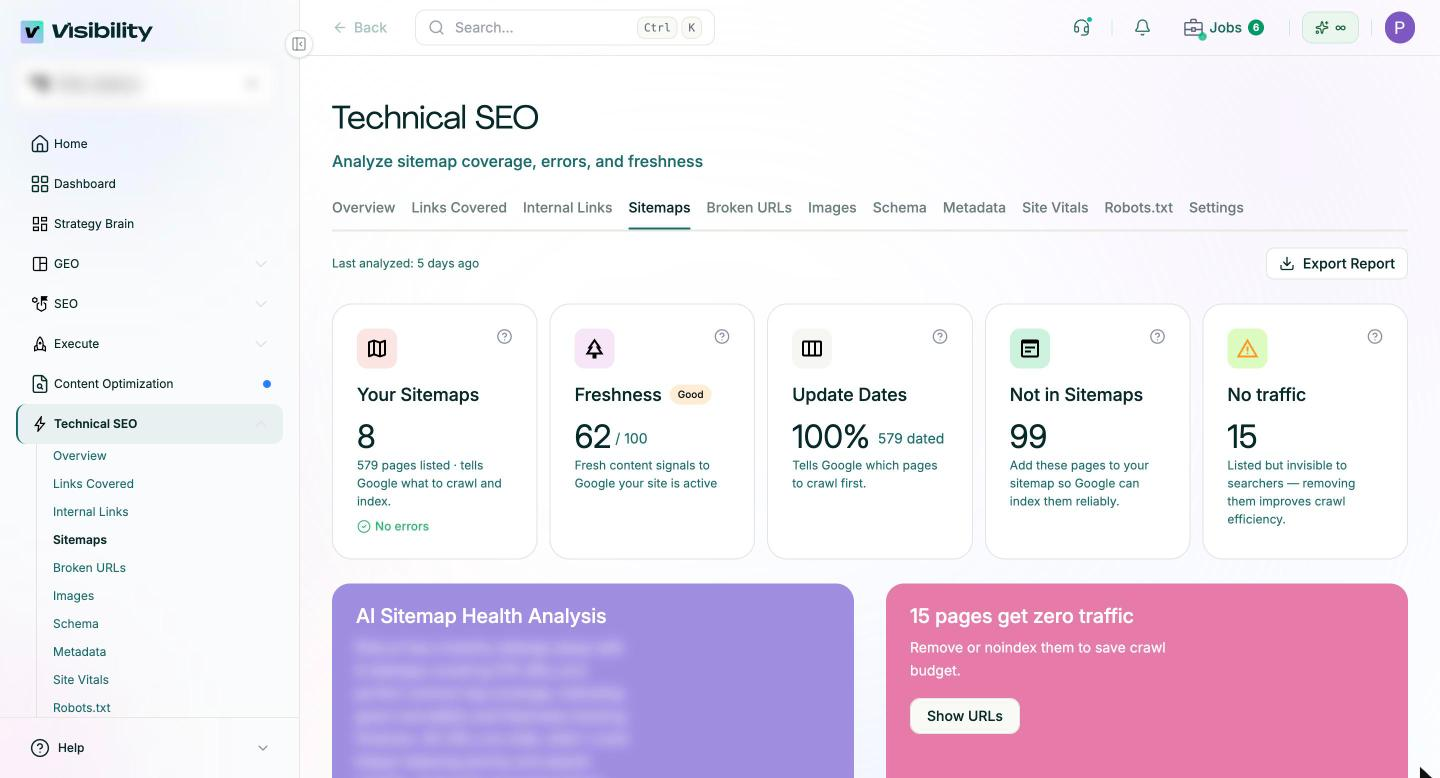
Deciding which pages should be indexed, fixing the generator rules and adding internal links to orphan pages remain decisions for your team.
Start with one crawl comparison
Run a full crawl this week, compare it with your current sitemap, and sort every URL into the three groups. Fix the generator rule behind the biggest group of missing pages first, then remove redirects and retired pages, then check lastmod.
To see how the same kind of review applies to content, read what to keep, update and measure as AI search changes top-of-funnel traffic.
Get started with Pixis Visibility to schedule technical audits that flag sitemap issues and orphan pages before they affect indexing.
FAQs
Do I still need to ping Google when my sitemap changes?
No. Google deprecated the sitemap ping endpoint in 2023. Keep the sitemap submitted in Search Console, list it in robots.txt and keep lastmod accurate.
When do I need a sitemap index file?
When a single sitemap would exceed 50,000 URLs or 50MB uncompressed. The index lists several child sitemaps, each within those limits, and you submit the index instead of each file.
Should orphan pages stay in the sitemap?
Only if you want them indexed, and then they also need internal links. A sitemap entry helps discovery but does not replace links from relevant pages on your site.