
Your AI tool can produce a week of blog drafts in an afternoon. Getting them onto WordPress, checked and published at the right times, is where the week usually goes.
The tempting shortcut is to connect the tool and let it publish straight to live. That is also the fastest way to put a hallucinated statistic, a broken link or a missing meta description in front of readers, with no record of what changed.
WordPress already has most of what a safe pipeline needs. Drafts give you a holding area, revisions give you a side-by-side diff and one-click rollback, and the native scheduler publishes at a set time. The work is putting them in the right order, with a human check in the middle.
This guide walks through the four phases (push, review, schedule, verify), explains why scheduled posts sometimes publish late, and shows how to plan review time for a regular cadence.
Key takeaways
- Push every AI-generated post into WordPress as a draft, never straight to live, so nothing reaches readers before a person has checked it.
- Run the same pre-publish checklist on every post: facts, links, meta description, slug, categories and tags, featured image and schema.
- Use WordPress revisions as your diff review and rollback tool; restoring a revision adds a new revision instead of deleting history.
- Schedule with the native WordPress scheduler, and check the site timezone and WP-Cron behavior before you trust the timing.
- Update the existing post when you republish changed content, rather than creating a duplicate.
- Pixis Visibility can push a finished draft to WordPress in one click as a WordPress draft; going live still needs approval, and scheduling happens in WordPress.
Phase 1: Push the AI draft into WordPress as a draft
AI is good at producing a first version. It does not know your slug conventions, your category structure or which of its links actually resolve. The draft status is what keeps that version out of public view while you check it.
- Generate or select the draft in your AI content tool.
- Send it to WordPress with the post status set to Draft.
- Open Posts in WordPress and confirm the post is listed with the label Draft.
Before drafts enter this pipeline, make sure the tool generating them has enough brand context to get close the first time. For what that context should include, see how much brand context AI content needs.
If your tool connects through the WordPress REST API, it can set the post status directly. The API accepts publish, future, draft, pending and private. A post sent with the status future and a date in ISO 8601 format is held as scheduled until that time. For AI content, sending it as draft and scheduling after review is the safer default.
Phase 2: Review the draft and the diff
The checklist is what turns a draft into a post worth publishing. Run it every time, on every post, so review becomes a repeatable gate rather than a judgment call made under deadline.
The pre-publish checklist
- Facts. Check dates, names, statistics and claims against their original sources. Remove any number you cannot trace.
- Links. Open every link and confirm it resolves and points where you intend.
- Meta fields. Write or edit the meta title and description, and set the slug.
- Taxonomy. Assign categories and tags that match your existing structure.
- Featured image. Add it, with descriptive alt text.
- Schema. Configure schema markup, usually through your SEO plugin.
Review what changed with revisions
Once someone has edited the draft, compare the edited version with the original before you schedule it. In the editor, open the revisions view from the post sidebar. WordPress shows a side-by-side comparison of two versions, with added and removed text highlighted.
If an edit made things worse, restore the earlier version. The WordPress revisions documentation explains that every saved change is stored, and restoring a revision adds a new revision rather than deleting the ones after it. That makes rollback safe to use, even after the post is live.
To keep the review stage moving, assign one owner and one sign-off per post. For common reasons review stalls, see what slows content teams down in the editing workflow.
Phase 3: Schedule the post with the native scheduler
WordPress has scheduling built in, so no plugin is needed for this step.
- In the block editor, open the post settings and find the publish setting, which shows Immediately by default.
- Choose a future date and time for the post to go live.
- Click Schedule, then confirm.
- Check that the post now shows Scheduled in the Posts list.
Repeat for each post in the queue, following a fixed cadence. A predictable rhythm, such as Monday, Wednesday and Friday mornings, keeps review work evenly spread and makes a missing post easy to spot.
If a reviewer wants a second gate, use the Pending status between Draft and Scheduled. Pending marks a post as waiting for editorial approval, and only an editor moves it on.
Phase 4: Verify the post after it goes live
Scheduling is not the end of the process. Check the queue before the publish time and the live page after it.
- In the queue. Every post due to publish should show Scheduled. A post still marked Draft or Pending was not scheduled.
- The date and time. Open each post and confirm the scheduled time is the one you meant.
- The timezone. WordPress publishes on site time, not your local time. Check the timezone under Settings, then General. If it is wrong, a 9:00 AM post can go out hours early or late.
- On the live page. Open the published post and check the title, formatting, links, featured image, meta description and schema.
If something is wrong after publishing, compare the live version with the last approved revision and restore it. Then fix the cause in the checklist so the same error does not repeat.
Why scheduled posts sometimes publish late
WordPress scheduling relies on WP-Cron. Despite the name, WP-Cron is not a true server cron: according to the WordPress developer docs on WP-Cron, it runs when someone loads a page on the site. On a busy site, that happens constantly. On a quiet site, a scheduled post can sit past its publish time until the next visit triggers the check.
If timing matters, the usual fix is to disable WP-Cron in wp-config.php and set up a real server cron job that calls wp-cron.php at a fixed interval, such as every 15 minutes. This is a small change, but it touches server configuration, so it is a good moment to involve a developer.
Plugins that automate AI publishing may add their own schedules. Some run on intervals, such as every 15 minutes, so allow for that gap when you check whether a post went out on time.
Plan the cadence and the review time
Estimating review time up front keeps the schedule realistic. An illustrative example: you have six AI-generated posts and want to publish Monday, Wednesday and Friday at 9:00 AM for two weeks. That is three posts a week.
If your checklist takes about 12 minutes per post, the batch needs roughly 72 minutes of review. Booking that time before the week starts, instead of fitting it in on publish day, is what keeps posts from going out unchecked. Your own time per post will depend on length, topic and how much the AI draft needs.
When you need to change a post that is already published, edit the existing post rather than publishing a new one. A duplicate splits signals between two URLs and creates canonical conflicts. Editing in place keeps the URL and its history, and the revisions give you the diff. For keeping older posts current over time, see how to keep stale drafts from eroding content quality.
Where Pixis Visibility fits
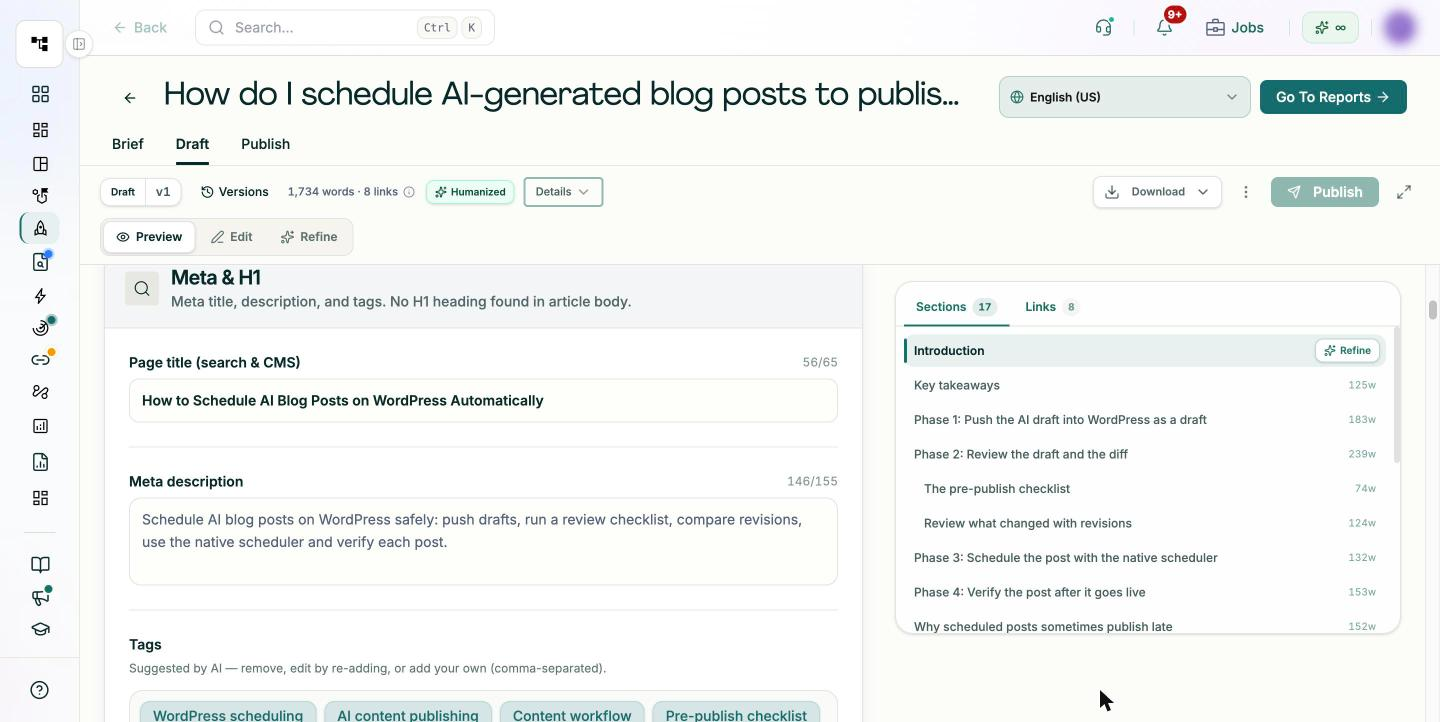
The manual part of this pipeline that is easiest to get wrong is moving a finished draft into WordPress with its fields intact. Pixis Visibility handles that step with one-click WordPress publishing.
The draft, written in your brand voice from a brief or a content plan, is pushed to WordPress as a WordPress draft first. Going live still needs approval, so the review gate in phase 2 stays in place. If you publish the same content again after changes, it updates the existing WordPress post instead of creating a duplicate. You can edit the draft's SEO fields, such as the meta description, before you push it.
What stays in WordPress is the diff review, the rollback and the scheduling: revisions and the native scheduler do those jobs. What stays with your team is the checklist itself, the sign-off and the decision about when each post should go out.
Schedule your next week of posts
Pick three drafts that are nearly ready. Push them into WordPress as drafts, run the checklist on each, and compare revisions after edits. Then schedule them on a fixed cadence and check the site timezone before the first one is due.
After the first week, look at what the checklist caught. Anything that came up more than once belongs earlier in the process, in the brief or the brand context the AI tool uses.
Get started with Pixis Visibility to push reviewed AI drafts to WordPress in one click, ready for approval and scheduling.
FAQs
Can I schedule posts on WordPress without a plugin?
Yes. Scheduling is built into WordPress. Set a future date and time in the post's publish setting in the block editor and click Schedule. Plugins are only needed for extra automation, such as bulk scheduling.
What is the safest post status for AI-generated content?
Draft. It keeps the post out of public view while you run the checklist. If you want a second approval step, move it to Pending for an editor, and schedule it only after sign-off.
Can I roll back a post after it has been published?
Yes. Open the post, go to its revisions, compare versions and restore the one you want. Restoring creates a new revision, so the history stays intact and you can undo the rollback too.
How do I find posts that missed their schedule?
Open the Posts list and look for posts that still show Scheduled after their publish time; WordPress often labels them as missed. A pattern of missed posts usually points to WP-Cron on a low-traffic site.