
An image audit comes back with 3,400 images missing alt text. Most were uploaded years ago by people who have left, across product pages, blog posts and landing pages nobody has touched since launch. Writing every description by hand would take weeks, so the task sits at the bottom of the backlog.
AI image description tools make the volume manageable. The risk is treating them as the whole answer. A model will happily describe a decorative divider, stuff a product name into every description, or misread a chart, and each of those makes the page worse for screen reader users rather than better.
The workable approach is a batch workflow: sort images by what they do on the page, generate descriptions only where they are needed, have a person review a sample, and write the approved text back through your CMS.
This guide explains how to find and sort the images, write the right alt text for each type, review AI output, estimate time and cost, and confirm the fixes are live.
Key takeaways
- Sort images before generating anything: decorative images get an empty alt attribute, informative images get a description, and charts get a short summary plus the data nearby.
- Generate AI descriptions only for informative images, and have a person review a sample of every batch before it goes live.
- Describe what the image shows and why it is on the page. Keyword-stuffed alt text hurts accessibility and can look like spam to search engines.
- Generation is cheap, so plan the budget around review time rather than the per-image fee.
- Pixis Visibility flags image issues in its technical SEO audit and generates alt-text suggestions for review; nothing is pushed live automatically.
Know the size of the problem
Missing alt text is one of the most common accessibility failures on the web. The WebAIM Million report, which tests the home pages of the top million websites, found missing alternative text on 53.1% of home pages in its 2026 analysis.
Having alt text is not the same as having useful alt text. The same report found that 10.8% of images that did have alternative text used questionable or repetitive values, such as "image" or a file name. A bulk project should fix both: fill the gaps and replace the placeholders.
Before you start, make sure you have:
- Admin access to your CMS, with a way to edit image metadata in bulk through CSV import or an API
- A crawler that reports images and their alt attributes
- A staging environment where you can check changes before they go live
Step 1: Crawl the site and export every image
Crawl the site with JavaScript rendering turned on if images load through scripts. Most crawlers separate two problems, and you need both lists:
- Missing alt attribute: the img tag has no alt at all, so some screen readers announce the file name instead.
- Empty alt attribute: alt="" is present. This is correct for decorative images and wrong for informative ones.
Export the results as a single CSV with the image URL, the page it appears on, and the current alt value. For the wider set of on-page issues a crawl can surface, see the roundup of free SEO audit tools.
Step 2: Sort images by what they do on the page
The W3C Web Accessibility Initiative images tutorial groups images by purpose, and that grouping decides the alt text. For a bulk project, three buckets cover most cases:
- Decorative: borders, spacers, background patterns and stock imagery that adds no information. These get alt="".
- Informative and functional: product photos, screenshots, illustrations, and images that act as links or buttons. These get a description of the content, or of the action for linked images.
- Complex: charts, graphs and diagrams. These get a short summary in the alt attribute and the full data in nearby text or a table.
Sorting can be partly automated by folder, file name pattern or template position, but expect to review the edge cases by hand. A logo in the header is functional if it links home; the same logo in a footer pattern may be decorative.
Step 3: Write or generate alt text by type
Decorative images
Set alt="" and stop. Do not leave the attribute out, and do not describe the image. An empty value tells screen readers to skip it.
Informative and functional images
Describe what the image shows and why it is there, in plain language and usually in one sentence.
- Good: "Three-quarter view of a charcoal sectional sofa on a hardwood floor."
- Too thin: "sofa"
- Stuffed: "buy charcoal sofa online best price sectional couch"
Skip "image of" or "picture of", since screen readers already announce that it is an image. For a linked image, describe the destination or action, such as "Download the 2026 pricing guide (PDF)".
This is the bucket where AI generation saves the most time. Give the tool context where it supports it, such as the page title or product name, so descriptions match the page rather than describing the image in isolation.
Complex images
Write a short summary in the alt attribute, such as "Bar chart of quarterly revenue, rising from Q1 to Q4." Put the actual figures in a table or paragraph near the chart. AI tools often misread axes and values, so treat this bucket as manual or heavily reviewed.
Step 4: Review a sample before anything goes live
Run AI generation on the informative bucket, then review a random sample of every batch. Check each description for:
- Accuracy. Does it describe what is actually in the image, with no invented details?
- Context. Does it fit the page? A product photo on a care guide may need a different description from the same photo on a product page.
- Keyword stuffing. Product names are fine when relevant. Lists of search terms are not.
An illustrative example: for a batch of 250 informative images, reviewing a 20% sample means checking 50 descriptions. If more than a handful fail, review the whole batch and adjust your prompts or context before the next one.
Label each description in your data as AI-generated or human-written. That lets you rerun generation later without overwriting text a person has already approved.
Step 5: Write back through staging
Import the approved alt text into your CMS through CSV or the API, in staging first. Check the rendered HTML on a few pages of each template to confirm the alt attributes appear as expected, then deploy to production.
Plan the time and cost
Generation is the cheap part. In a SingleStore proof of concept built with Anthropic's models, the team estimated the cost at around $0.01 per image, or less than $10 per 1,000 images. At that rate, 250 images cost about $2.50 to describe.
Review is the real cost. As a planning assumption, a reviewer checking short product descriptions might cover 100 images in 15 to 30 minutes, while charts and diagrams take far longer. Budget reviewer hours per batch, not per-image fees.
Bring in an accessibility specialist when you have tens of thousands of images, a legal compliance deadline, or many complex data visualizations that need expert descriptions.
Check that the fixes are live
After deployment:
- Recrawl the remediated pages and confirm no informative images are missing alt text and no placeholder values remain.
- Test three to five pages with a screen reader to hear whether the descriptions are useful in context.
- Watch image search impressions in the Search Console Performance report, with the search type set to Image, over the following weeks.
- Schedule a follow-up audit around 30 days later to catch new uploads without alt text.
Accessibility work can support search performance, but treat that as a correlation. A 2025 study by AccessibilityChecker.org and Semrush found a positive correlation between accessibility compliance and organic traffic, and describes accessibility as one of many factors. For how image and other technical fixes fit into wider visibility work, see how to use technical SEO for GEO.
Where Pixis Visibility fits
The repeat work in this process is finding images with missing or weak alt text, drafting descriptions and catching new uploads as they arrive.
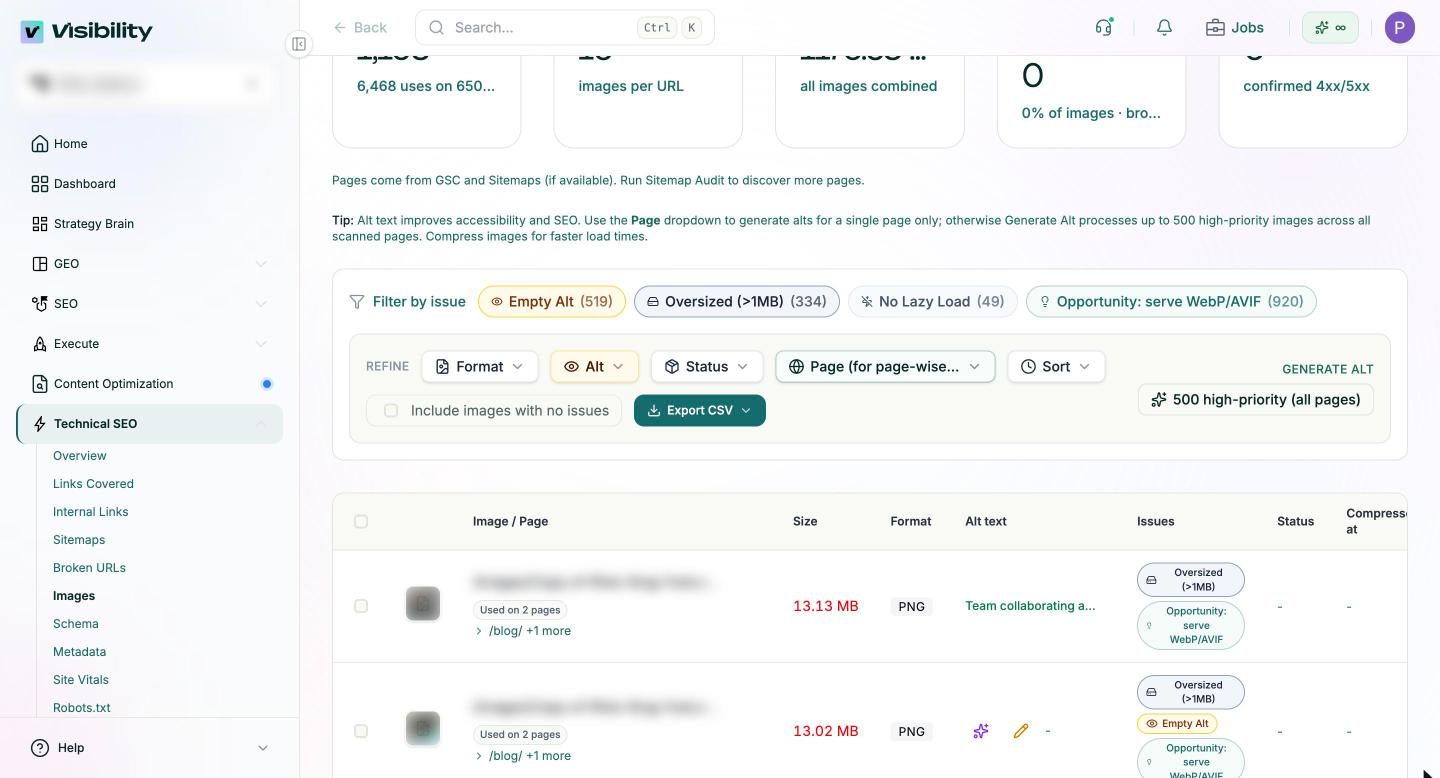
Pixis Visibility's technical SEO audit flags image issues, including missing alt text and oversized files, and generates alt-text suggestions for the images it flags. Its Images report filters images by issue, such as empty alt text or oversized files, and its Generate Alt action drafts alt text for a single page or for up to 500 high-priority images across the site in one run. Suggestions stay suggestions: nothing is pushed to your live site automatically, so your team reviews and approves each change before it is published. The audit can run daily, weekly or monthly with email alerts when issue counts cross a threshold, which catches new images uploaded without alt text.
Sorting decorative from informative images, describing complex charts and deciding what each image means on its page still need a person.
Turn the backlog into a routine
Start with the templates that carry the most traffic, usually product and category pages, and run one batch of 200 to 300 images through the full workflow. Once the review rate and failure rate look right, process the rest in batches.
The same pattern applies to other accessibility issues your crawl surfaces, such as missing form labels and low-contrast text: find the gap, fix in batches, review a sample, deploy through staging.
Get started with Pixis Visibility to find images missing alt text across your site and review generated suggestions before they go live.
FAQs
Can AI write accurate alt text for every image?
Not reliably. It does well on straightforward photos and struggles with charts, diagrams and images whose meaning depends on the page. Always review a sample, and treat complex images as manual work.
How long should alt text be?
Long enough to convey the content and purpose, and usually no more than a sentence. Put longer explanations, such as chart data, in the page text instead.
Does alt text help SEO?
Google uses alt text, along with the page content, to understand what an image shows. Descriptive alt text helps images appear in relevant image results; keyword-stuffed alt text does not help and makes the page worse for screen reader users.